Link
A link in a Bayesian network defines a causal link from one chance node (discrete or continuous) to another.
In an LIMID, a link can mean one of three things:
It can be a causal link as in a pure Bayesian network. This is the case, when the link goes from a chance node or decision node to a chance node.
It can define the utility function to depend on a chance node or a decision node. This is the case if the link goes from a chance node or decision node to a utility node.
It can specify the information available to the decision maker. This is the case if the link goes from a chance node or decision node to a decision node. These links are referred to as informational links.
In an object-oriented Bayesian network (or LIMID), a link is defined as above, except if the link points to an input node of an instance node. In that case the link is interpreted as a binding link (i.e., the input node is bound to the node at the other end of the link).
A link can be established in Edit Mode by activating the Link Tool and dragging a line from one node to another.
There are three different display modes for a link:
Normal: A straight line from one node to another.
Spline: A bezier line (i.e., a curve that passes over every 3 points of a series).
Lines: A series of straight lines.
The display mode for a link is selected by first selecting the link (i.e., left-click at or near the link so it gets highlighted), then right-clicking at the background of the Network Pane to activate the pop-up menu for the pane, then selecting the Link Mode item, and finally selecting the desired mode from the Link Mode sub-menu (see Figure 1).
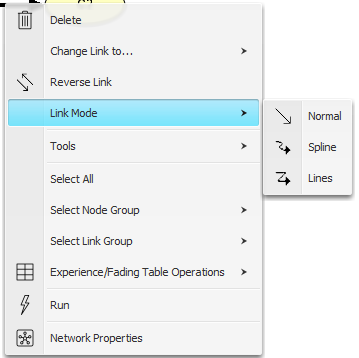
Figure 1: There are three different display modes for a link.
New bezier points a created simply by click-and-drag operations. Figure 2 shows a link with two bezier points, displayed in Spline mode and Lines mode, respectively. The bezier points can be moved using click-and-drag operations. Please note that if a bezier point is moved to a location lying on the line between its neighboring points, it will be removed.
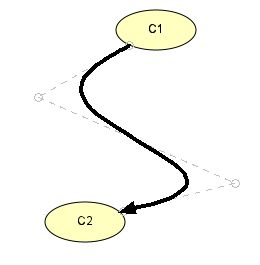
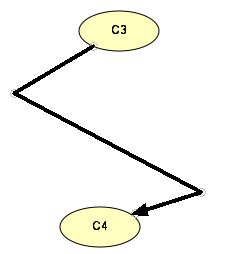
Figure 2: There are three different display modes for a link.